Pages

Showing posts with label iPad. Show all posts

Thursday, 14 May 2015

#YYCLC Day 157: The Tree Project

Today this Grade 1 class took their learning commons work outside. They have been documenting trees in our playground throughout the year. They noticed there was a big change in the tree over the last month!

Wednesday, 13 May 2015

#YYCLC Day 156: Uploading Time!

Today I took some time to upload some Explain Everything videos to Google Drive. It amazing to be able to take the time occasionally to do this kind of work. These videos are a documentation of a boat building project that a Grade 2 class completed this week! 

Monday, 20 April 2015

#YYCLC Day 139: Aurasma to showcase work


A grade 5 student using the Aurasma App to show his mom his media presentation for social studies. Our grade five students have been working with Aurasma this year to create an augmented reality map to showcase their work.

Thursday, 9 April 2015

#YYCLC Day 132: Documenting Learning with iPad

The grade 4s from yesterday post are continuing their work on Simple Machines and are now document their learning using our mini light studio and iPad. They will work with the images at a later point. After the students learn a little more about Simple Machines they will use Skitch App to label the different parts of their machine.

Wednesday, 18 February 2015

Tuesday, 10 February 2015

#YYCLC Day101: Find the Quiet Spot

The Learning Commons is hardly ever quiet! When recording your voice, it's important to find the right spot so the iPad can pick up your voice. This grade 3 student chose to sat in between two bookshelves! 

Monday, 9 February 2015

#YYCLC Day 100: Busy lunchtimes in the LC

At Chris Akkerman, the learning commons is often a busy place at lunchtimes. Today there various things happening - Lego maker stations, teachers planning, students editing an iMovie project on iPads, and doing online activities to name a few.

Monday, 1 December 2014

#YYCLC Day 62: Searching for Books

This week we welcome and thank Tracy Tuttosi who is sharing some action from the learning commons at Dr. Morris Gibson School in Okotoks. 


Searching for books using the iPad

Tuesday, 25 November 2014

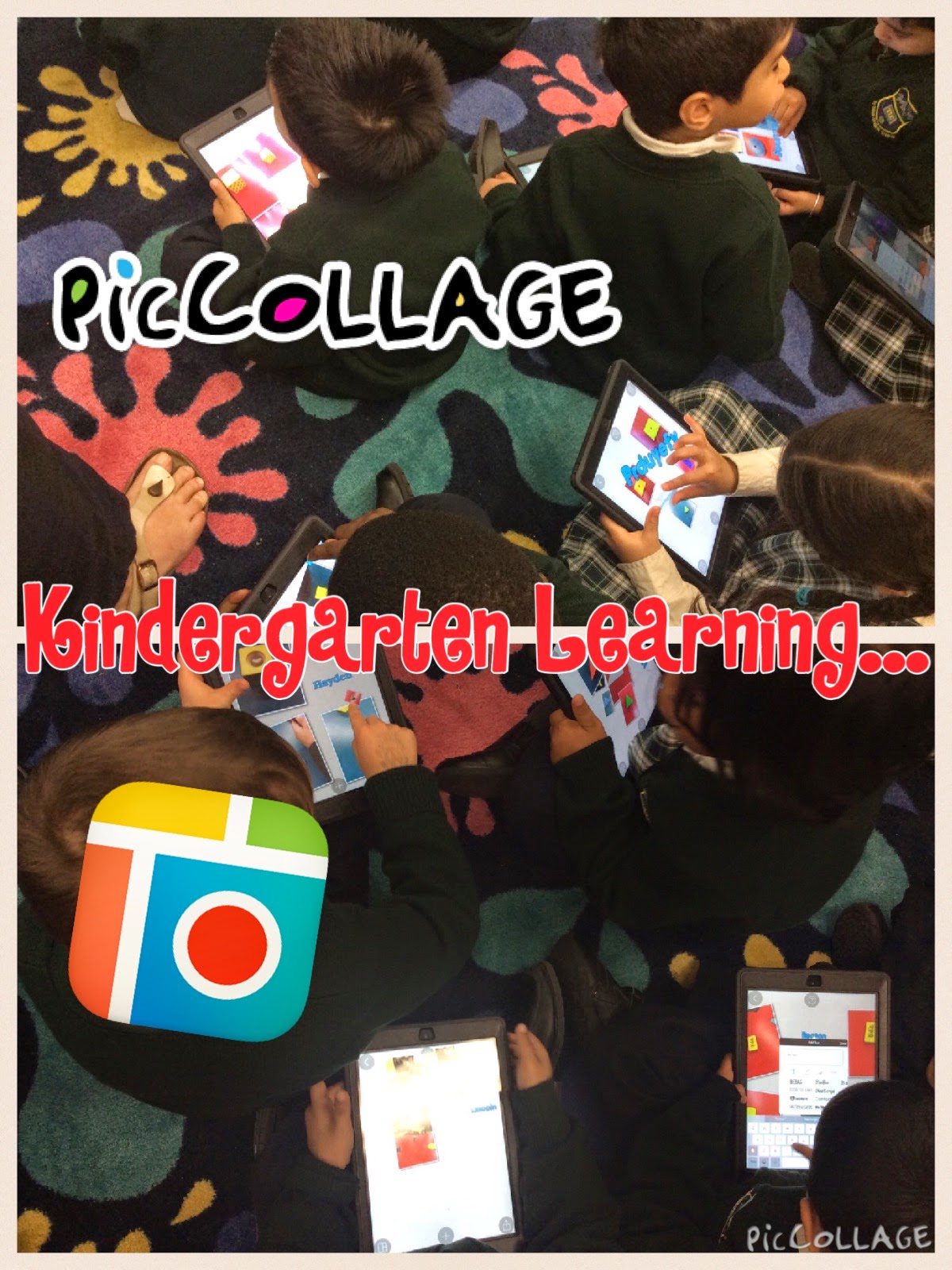
#YYCLC Day 58: Kindergarten & Pic Collage

At Chris Akkerman, our kindergarten students were learning how to use Pic Collage today. We had previously taken some photos of shapes and today we were adding text to our pictures. 


Monday, 24 November 2014

#YYCLC Day 57: Stopmotion Studio in the Learning Commons

We've had an meal worm observation station in our learning commons for a couple of months. Now it's time for the those creepy crawlies to change!

  
We documented part of the process with this stop motion video. 600 pictures and 4 or 5 hours later we ended up with the following video

or watch on YouTube here - http://youtu.be/9jXaYnSDnCs 

Tuesday, 28 October 2014

#YYCLC Day40: Grade 5s Explaining Everything

The learning commons is a great place to spread out when recording audio (or video) to explain a concept.

Thursday, 16 October 2014

#YYCLC Day32: Getting Creative with Digital Citizenship

Grade 3 students at Chris Akkerman learning to take creative photos. These photos are for a Digital Citizenship project about privacy. More to come...

Wednesday, 24 September 2014

#YYCLC Day 17: Learning to Take Photos


Chris Akkerman grade 1 students learning to take photos on iPads before venturing outside to document the trees!

Monday, 15 September 2014

Maker Stations are Coming!

In an effort to create some interest around some of the technology we already have in our building, I am introducing some maker stations to our learning commons. At this stage, our first maker stations are going to be set up around digital photography.

Students will come into the Learning Commons in small groups or independently to work through stations. Printed instructions will help students work through the station and learn something new.

Watch this space!

Maker Stations coming very soon!

Stations being set up

Monday, 23 December 2013

Apple Holiday TV Ad - An idea for teachers...

I wrote a post about the power of iMovie a few months back but was not sufficiently articulate. The new ad from apple shows something we could be doing in our classrooms with, of course, additional interaction in questioning, in summarizing, and in provoking discussion.

In the video below a teenage boy makes a Christmas video to surprise his family by showing them how magical the holiday has been. Teachers could (and should) use this idea to show kids how magical their learning has been.

Enjoy!


Monday, 4 November 2013

An Augmented Cultural Museum

Alberta has a celebration in late September called Alberta Cultural Days. Our school decided we'd use this province-wide celebration to kick off a small celebration of our own to acknowledge the diversity of some of the cultures in our school.

This event would be a great way to use the learning commons. We decided on having a small group of students (partly due to the time factor) who would be interested in being part of this group and would be willing to work on it at lunch times as well as at home too if needed.

I also thought it would be a great way to showcase the power of the mighty Aurasma, an augmented reality app available for free for mobile devices.

The Artifacts

Students would take digital photos of things that are unique to their culture. They would then bring the image files to school or save it to their Google Drive.


The Videos

Using those photos as their inspiration, and by recording with green screen, or just using the photos with voice-over in iMovie, the students created scripts to describe their artifact and why it is important to their culture.


The Slow and Steady Editing Process

This was the slowest part of the entire process. If you've ever edited video before you'd know its a slow and arduous task. What I find when editing video the students become so particular about their work. They edit, edit and edit until they have something they're happy with. Through this part project I actually wondered if we were going to actually finish at all. The key to this is support. The next time I use iMovie with students I think I will spend more time on teaching this process so that students don't have to spend so long rerecording voice-over or going back and rerecording actual green screen shots. There are quite a few editing tricks that can help fill 'holes' in video clips.

The Uploading to Aurasma

This was the easy part! And by the way, this is not supposed to be a tutorial. That will come soon...

First, the picture/trigger images were uploaded to the Aurasma Studio server from the share point on our school server. Then I uploaded the video/overlay too. Both of these has similar file names so I could match them up when creating the Aura. Once both the pieces were on the Aurasma server, I then linked them together to create the finished Aura. Once created, the photo that the student took then acts as a trigger for the video that they also made. What an awesome way to showcase student work!


It all comes together in The Virtual Museum

Once all thirty Aura's were completed, we opened the museum for business. We invited half a class at a time through the museum, due to only have 15 available iPads. the museum-goers wore headphones to really focus in on listening to the videos (and some audio was quite low in volume).

It was amazing! Every student who came through our museum was engaged and focused on learning about someone else's culture.


Tuesday, 11 June 2013

4 Ways to Activate Students With iMovie

Have you ever climbed a mountain and not looked back? Can you imagine, not taking pride in the distance you've come, or building anticipation as you look forward? iMovie on the iPad has been an enormously successful tool that encourages reflection and anticipation for learning.

I started thinking about the power of simple recordings when I had a disadvantaged student who rarely arrived on time... Morning work was SMART Board based, so I used quicktime to do a screen capture so he could work without missing a beat.

This line of thinking naturally led me to iMovie on the iPad.

Instant reflection.
We had grade 4 kids that were challenged to make a double pulley system. They got stuck a lot, and teachers "annoyingly" pelted students with questions, not answers. Soon students started thinking out loud... Talking, sharing and collaborating with their partners and other teams...Teachers gave power to the students and partnered with them... Then we started recording. iMovie edits on the fly, so we were able to share students' creative, problem-solving thoughts with the entire class immediately after the lesson. A question in one group became a discussion point for the class, and the everyone took turns either building on the wonderment or providing solutions and ideas.

Get your head in the game!
A different class was studying Air and Aerodynamics where they were challenged to land a flying machine while keeping a lego-minifigure safe... Each work-period, though, they were starting from scratch. Their minds slowly (too slowly) began to ease into the lesson, so we filmed them thinking/questioning/working and hooked them by reminding them of the great work they had done in the previous lesson. We've repeated this a few times and have always been blown away by how a 2-5 minute video can instantly reengage students in their learning.

Documentaries. 
In a 40 minute lesson, kids can develop a documentary and can be introduced to a new topic. They can develop questions to guide the inquiry and can help fill up the "Know" bit of a KWL... with ease. We pulled out a bunch of books, threw them on the floor and passed out iPads. After a 3 minute tutorial on iMovie (optional!), we asked kids to craft a documentary about the topic that included audio, video, titles, and visuals. Students took pictures from the book and published a 2-minute documentary. Ideally we'd throw those up on the internet for students to watch from home, but we wound up showing them to the class. It was amazing how activated their memories were... When we started to look at our prior knowledge, they were exploding with (base level) ideas. More importantly though, they were primed for the deeper learning that followed!

Celebrations.
For our most recent unit on the Inuit Games we showcased our learning to the entire school by hosting every grade. The grade 2 student-leaders taught all of the kids how to play their games, and the students responded by doing their best, being respectful and playing hard (it was a pretty amazing morning!). As students were leading and learning we recorded the entire process. On the fly, we edited a 10-minute video that included each grade 2 student. We also made a trailer on iMovie. In the afternoon the grade 2s all got together and had their own celebration of learning where they could watch themselves directing older kids, sharing their knowledge, and being successful.


Wednesday, 29 May 2013

What Do Horses Need?

My grade one class at Guy Weadick School recently completed an inquiry into the needs of plants and animals.  We took a close look at the history, the value, and the role of horses in Alberta!  We were lucky to visit Aggie Days at Stampede Park to meet many domestic horses.  We also had the experience of having Mr. Larry Semchuk, a wildlife photographer come to our class.  Mr. Semchuk wrote a a book on Alberta's wild horses called Running Free: The Wild Horses of Alberta's East Slopes.  

After learning so much about horses, the class was eager to create books.  In groups of three we worked together to write non-fiction books using the iPad App StoryMaker.  This was the first time we used our school's new iPads!  There was lots to learn, but working together to solve problems really helped. Here are some  pages from their books to help you learn about some of the things that Wild and Domestic horses need.

For more information about our inquiry please visit our class inquiry page at 
http://www.makingmyworld.ca/inquiry.html 


Thursday, 9 May 2013

Augmented Book Reviews

Aurasma
Augmented reality keeps blowing people's mind. Every time I show the things we do with Aurasma and QR Codes, people can not believe what they see. The concept of augmented reality is really quite simple (in idea anyway). It simply layers images/videos over a 2D image. In Aurasma, the trigger image essentially acts like a barcode.

iMovie
This project was mostly conducted on Macbook Pros and iMacs as the students created videos using iMovie Trailers. We decided we wanted to look at book reviews/reading response in another way. I saw a tweet on Twitter where someone was showing their book trailers in iMovie. I wanted to step it up and make book trailers and then attach them to a book cover so other's could see what that student thought of that particular book.

Planning the Trailer
First, students had to plan their trailer. This proved very difficult as these grade 4s had not used iMovie before and did not have a clue how it worked or what was involved. In the end, we scrapped the on-paper plan and just started building the iMovie project. This gave the students an idea what was required in iMovie.

Assessment
We didn't actually make any crieteria until our first couple of groups were "finished" their first edit. The reson for this was that the students didn't know what a good trailer would consist of. We looked at a couple professionally made animated movie trailers and discussed what made them awesome. From there we made a checklist then went on to building a rubric.
Target Rubric - Succes Criteria for our Book Trailers

Co-created checklist of how professional movie trailer are made
Students then went through and peer assessed each other's work. The feedback each student was important as they would base their editing on the feedback they were given. We developed a timeline of events so students knew the process that was required to finish their final trailer.

The Self Assessment, Peer Assessment and Feedback loops timeline


The Finished Product
Here is an example of the finished trailers using the Aurasma App. 


Friday, 15 March 2013

Voices on a Wall


This is a post that has also been posted on http://marlboroughipads.blogspot.ca and also follows-up on this post QR - Quick-Response.html

I have been working with a couple of different classes to experiment with using QR codes to share ideas and work that we have created. 

Text to QR Code
The first class we played with QR codes to share 'secret messages'. As part of the heath curriculum, we want to talk about our qualities and inefficiencies, our dreams and our aspirations.

  1. First we used Microsoft Word and Apple Pages to type up some text.
  2. Next we copied the text and pasted it www.QRStuff.com we copied the text.
  3. QRStuff generates a QR code and then we download.
  4. The QR code, in the form of an image, can then be pasted into another document and printed.
  5. These particular QR codes could either have the text embedded right in the code (which would mean the mobile device would not even require an Internet connection) or the user could choose to have the text uploaded to a QR Stuff Server (this would require Internet but also teacher discretion to ensure no personal data would be included). The only real difference would be in the visual appearance of the QR code itself.

Audio Recording to QR Code
After we learned and understood how QR codes worked and saw how visually appealing he wall display was. We thought it would be cool to make different kind of gallery on a bulletin board - We would attempt to put student voices on the wall. With parent interviews coming up, it would be a great way to showcase some great work produced by our students. This project would require writing and recording voice using 1 of 2 apps on the iPad.
  1. Students first needed to produce some writing. The teacher used some health related writing around 'bullying' and 'it's OK to be me'.
  2. Using an iPad, students recorded their voice using either GarageBand for iPad or Voice Recorder for iPad.
  3. We then co-created success criteria and a rubric for students to make quality recordings.
  4. Students published their audio recording and then shared it with the teacher.
  5. The teacher then uploaded the audio file to our web site server (CBE Project server) - the file would need to be accessible online by a URL.
  6. Once uploaded, the teacher generated the QR Code (with www.qrstuff.com) and saved back to a shared folder on the school server. 
  7. Finally Students created posters to share their work.

Below are a couple of examples of our Voice Gallery QR codes